
[guide] generate and manage ssh keys
1. Generate the key
The currently recommended algorithm is ed25519 (more secure and faster than RSA):
ssh-keygen -t ed25519 -C "email@example.com"If you need RSA for compatibility:
ssh-keygen -t rsa -b 4096 -C "email@example.com"You can change the filename to identify the key (useful if you have several):
Enter file in which to save the key (~/.ssh/id_ed25519): ~/.ssh/id_ed25519_account1Passphrase (optional but recommended):
Enter passphrase (empty for no passphrase):
Enter same passphrase again:
2. Start ssh-agent and add the key
eval $(ssh-agent -s)
ssh-add ~/.ssh/id_ed25519_account1
To load the key automatically on login on macOS:
ssh-add --apple-use-keychain ~/.ssh/id_ed25519_account13. Copy the public key
cat ~/.ssh/id_ed25519_account1.pubOr directly to the clipboard:
pbcopy < ~/.ssh/id_ed25519_account1.pub   # macOS
xclip -sel clip < ~/.ssh/id_ed25519_account1.pub  # Linux
4. Add the public key to the server or provider
Depending on the case:
- GitHub: Settings → SSH and GPG keys → New SSH key (
github.com/settings/ssh/new) - GitLab: Preferences → SSH Keys
- Own servers: add the content of
.pubto the~/.ssh/authorized_keysfile on the server
The process is the same for all: copy the public key content and paste it where needed.
5. Verify it works
With GitHub:
ssh -T git@github.com
# Hi user! You've successfully authenticated...
With any server:
ssh user@hostManaging multiple accounts or keys
The cleanest approach is using the ~/.ssh/config file. Create or edit that file:
# Connection 1
Host connection1
  HostName github.com
  User git
  IdentityFile ~/.ssh/id_ed25519_account1

# Connection 2
Host connection2
  HostName github.com
  User git
  IdentityFile ~/.ssh/id_ed25519_account2
This works the same with GitLab, Bitbucket, or any SSH server: just change the HostName.
Now you can clone using the Host alias:
git clone git@connection1:user/repo.git
git clone git@connection2:user2/repo.git
For an already-cloned repo, update the remote:
git remote set-url origin git@connection1:user/repo.gitVerify that each alias resolves with the correct key:
ssh -T git@connection1
ssh -T git@connection2
Using a specific key without touching config
If you need to do a one-time push with a specific key:
GIT_SSH_COMMAND="ssh -i ~/.ssh/id_ed25519_account1" git push -u origin masterOr to clone:
GIT_SSH_COMMAND="ssh -i ~/.ssh/id_ed25519_account1" git clone git@github.com:user/repo.gitYou can also export the variable for the entire terminal session:
export GIT_SSH_COMMAND="ssh -i ~/.ssh/id_ed25519_account1"
git push
git pull
# ... all commands will use that key
unset GIT_SSH_COMMAND  # when done
Configure the key per repo (core.sshCommand)
A more permanent alternative to GIT_SSH_COMMAND is saving the command in the repo config:
git config core.sshCommand "ssh -i ~/.ssh/id_ed25519_account1"This is saved in the repo’s .git/config and applies automatically. To view it:
git config --get core.sshCommandList keys loaded in the agent
ssh-add -lIf it’s empty and you have a passphrase, add the key manually:
ssh-add ~/.ssh/id_ed25519_account1Correct permissions (important)
SSH is strict about file permissions. If something fails, verify:
chmod 700 ~/.ssh
chmod 600 ~/.ssh/id_ed25519_account1
chmod 644 ~/.ssh/id_ed25519_account1.pub
chmod 600 ~/.ssh/configrelated
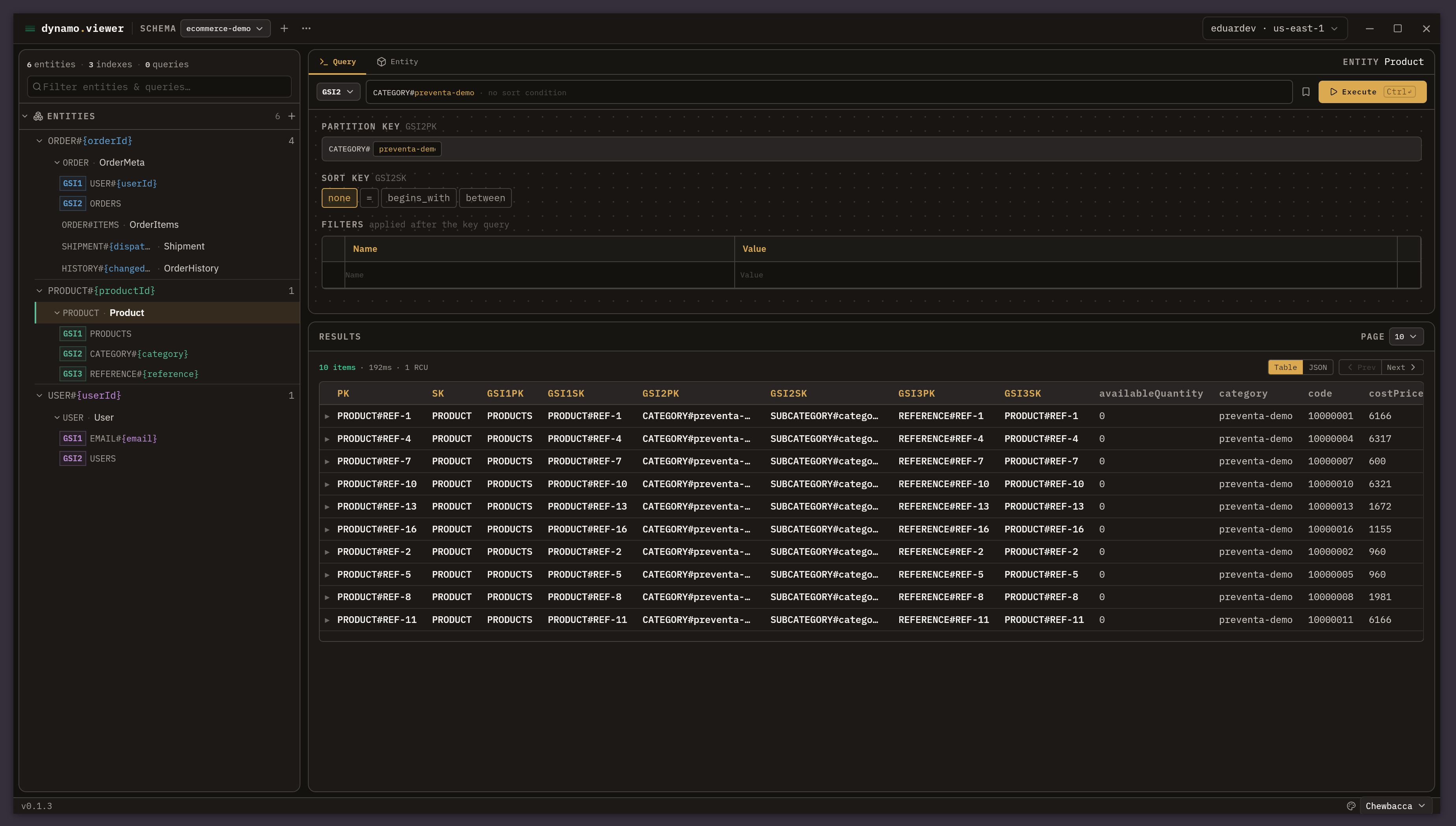
beautiful-dynamo-viewer: an explorer for single-table design in dynamodb
Why I built a desktop app to model and query DynamoDB tables with single-table design, without writing key conditions by hand.

serverless image pipeline with aws lambda+node+wasm: from 11.5mb to 91.2kb
How to build a 100% serverless image optimization pipeline on AWS with beautiful-image and zero native dependencies

[guide] deploy lambda with typescript and sam
Practical AWS SAM guide to deploy Lambda functions with TypeScript using CloudFormation templates and TOML configuration